Search
Zettel Notes indexes the contents of every note, so full-text search returns results almost instantly.
Search syntax
| Query | Finds notes that contain |
|---|---|
tag tag1 | both words |
tag OR tag1 | either word |
tag -tag1 | tag but not tag1 (an excluded term needs at least one normal term before it) |
tag* | words starting with tag |
#tag | the tag #tag |
- Matching is fuzzy, so close variations of a word are also found.
- The characters
#,@,_,-and/can be used in queries, so you can search for tags, authors and paths v2.8.9. - The search runs when you press Enter.
- In the notes list, tag searches can be applied one after another to narrow the results (sequential tag search) v2.9.2.
Tip
Search can be limited to the current subfolder with the restrict-search-to-subfolder option in settings.
Sort and filter results
To sort or filter results, tap the Sort icon in the menu. Results can be sorted by Date, Title, Word Count, Last Modified, Times Accessed and Filename.
Search inside a note
In view mode, use the search button to find text within the open note, and the previous and next buttons to move between matches.
To find and replace text while editing, see Search and replace.
Search by attribute
The Attributes section of the left drawer lists tags, authors and other frontmatter properties. To search by any YAML property, go to Left drawer > Add Attribute and choose the property v2.9.0. Its values then appear in the drawer and can be tapped to search.
Saved searches
Frequently used queries can be saved. They appear under Saved Searches in the left navigation drawer, with the number of matching notes.
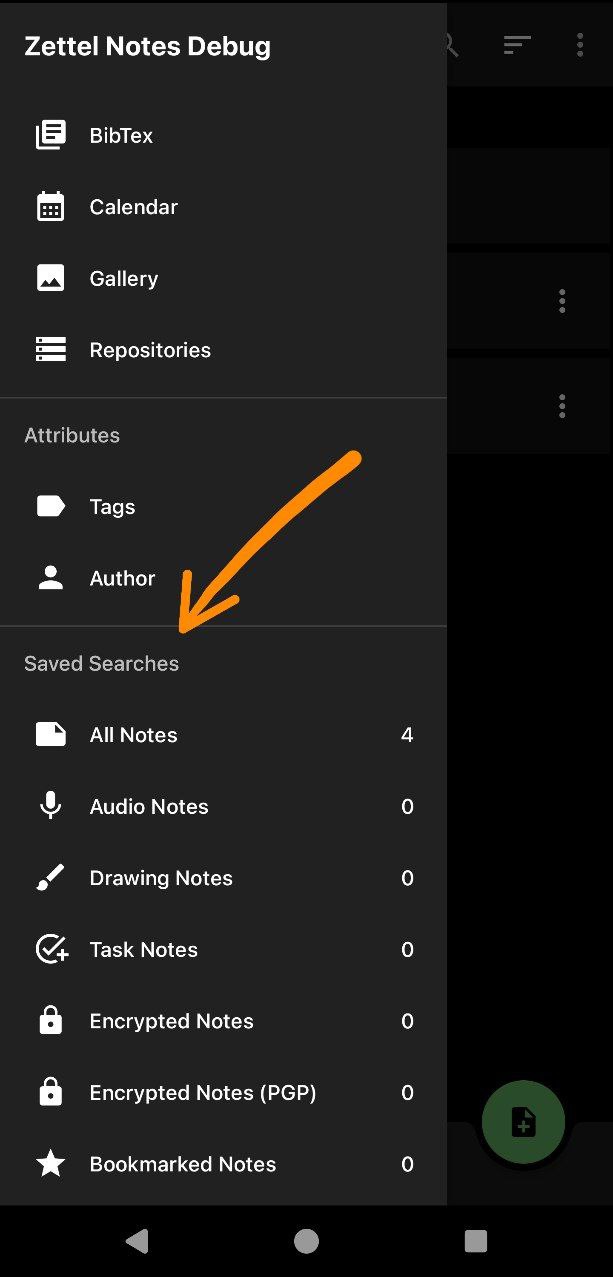
To manage them, tap Edit in the Saved Searches section and select a search to edit.
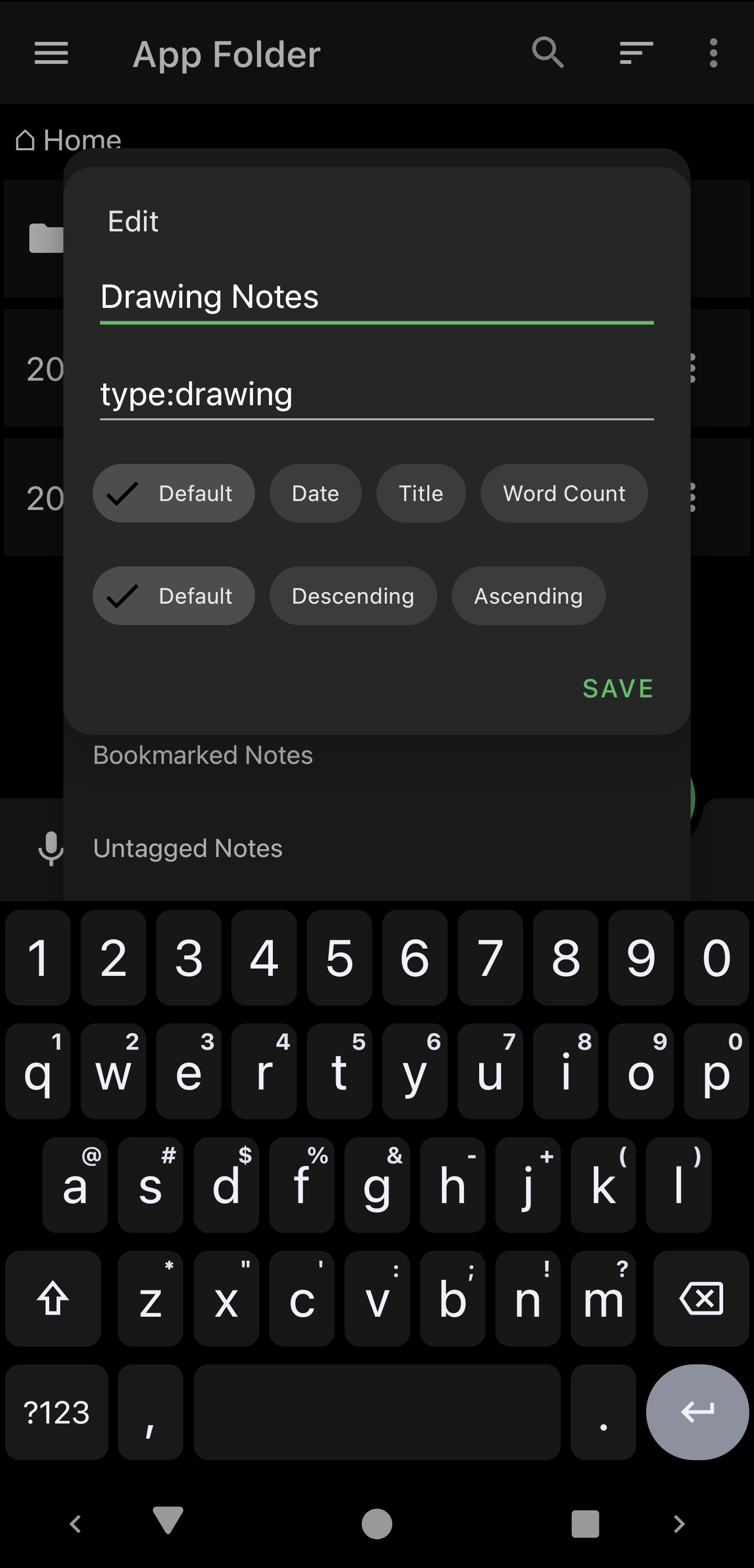
Set the name, query and icon v2.8.8, choose a filter chip if needed, and tap Save. Filters are saved with the search. To run a saved search, tap it in the navigation drawer.
Tip
Long-press a tag on the Tags screen to save it as a search. Saved searches can be included in backups.