Gallery and Media
The Gallery shows all media files in a repository, including images, PDFs and other attachments.
To open it, open the left navigation drawer and tap Gallery. Use the filter chips at the top to show only certain types of file v2.9.1.
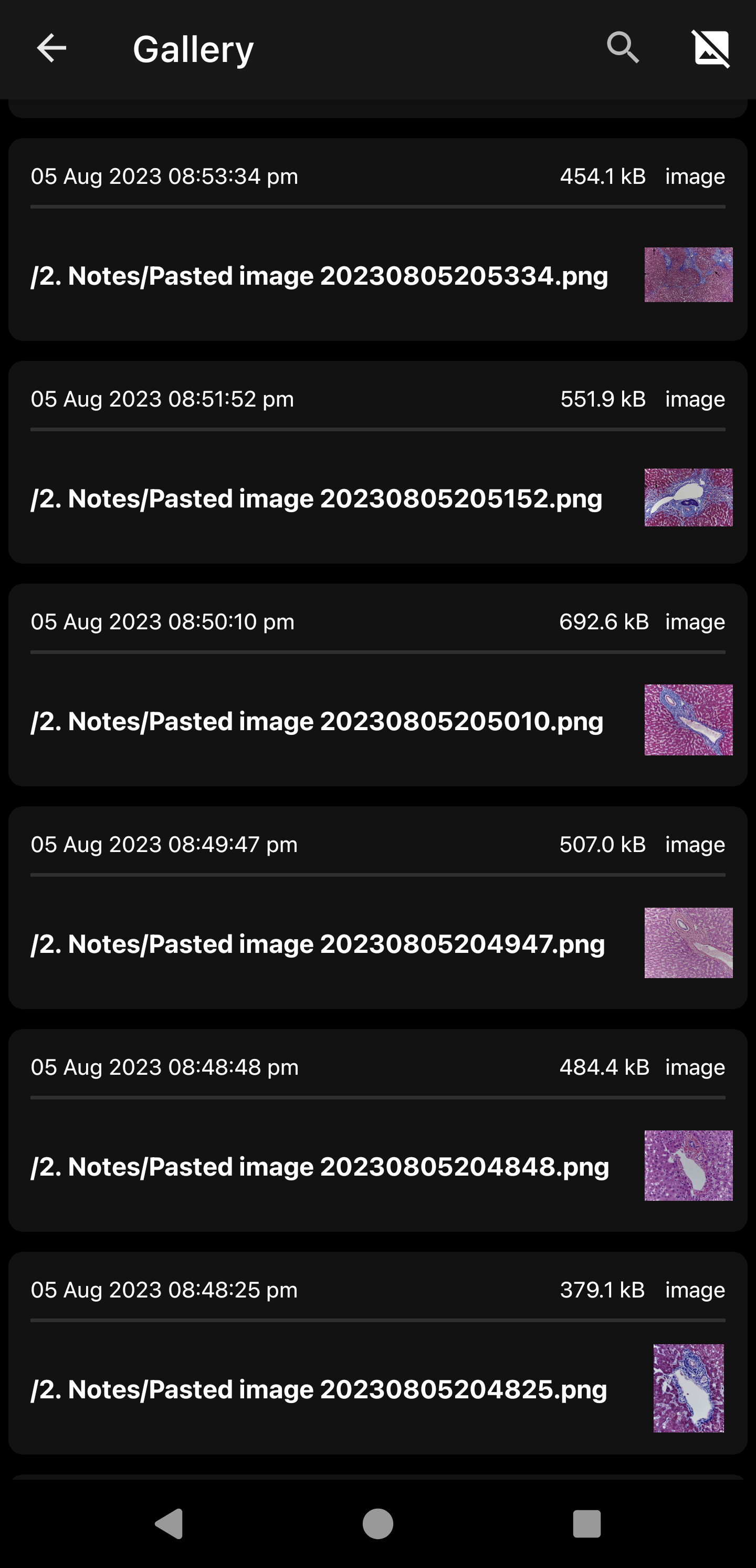
Long-press a media file to:
- Rename it
- Copy its link to paste into a note
- Show the notes that use it
- Open it in the system file manager
- Create a launcher shortcut that opens it directly
- Delete it
Tip
To find media files no note links to, tap Toggle Unused Media in the top-right menu.
Images
- Image viewer: images open in the built-in viewer, which shows all the images in the note.
- Image editor: edit images from the Gallery v2.6.1.
- Open with another app: open an image in another installed app v3.1.0. Images hosted online open in an in-app web view v3.1.1.
- Paste from clipboard: paste images from the clipboard into the editor v2.6.5.
- Animated GIFs play in view mode.
For image syntax, size and alignment, see Formatting.
Audio
Audio attachments, including recordings in audio notes, play in the built-in audio player v2.6.4.
PDFs and other files
shows a preview of the PDF in view mode v2.8.8.- A link to any other file, e.g.
[Report](report.docx), opens it in the matching Android app (documents, spreadsheets, presentations, audio, video and more).
Where attachments are saved
New attachments go to the folder set in the repository's default location for attachments. Their filenames follow the attachment suffix set in Settings > Editor and Viewer > Attachment Suffix (see Drawing Note).