Backups
Zettel Notes can back up your notes automatically at a set interval.
Info
Automatic backups include only notes in the App Folder. Notes in external folders are not backed up.
To enable automatic backups:
- Go to
Menu > Settings > Backup and Restore - Turn on Enabled under Automatic backups
- Select backup folder and backup interval
- Tap Backup Now to create a backup immediately
Tip
To create a local backup inside application data (not accessible via file explorer), click on first option Backup (excluding external notes). Share the backup file with your favourite application.
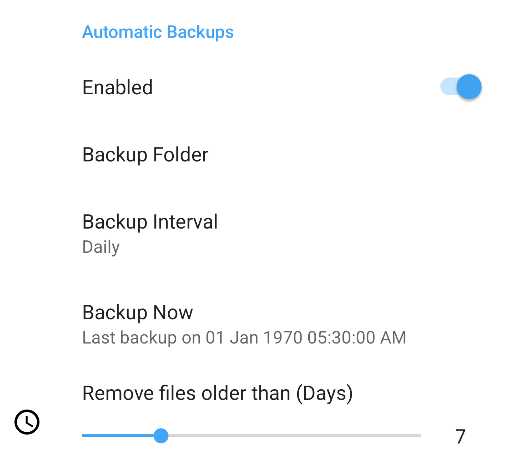
Available intervals:
- 30 mins
- 1 hour
- 6 hours
- 12 hours
- Daily
- Weekly
Backup options
- What to include: choose which data goes into a backup. Font files can be included v3.0.7.
- Password protection: encrypt automatic backups with a password in
Settings > Backup and Restorev2.9.8. Without the password, the backup cannot be restored. - Retention: keep only a maximum number of backup files v2.8.4, or delete backups older than a chosen number of days.
Other data you can back up
Besides the full app backup, these can be backed up and restored on their own:
- Markdown buttons and editor toolbar buttons
- Text snippets
- Saved searches
- Keyboard shortcuts
- Fonts
- Templates and themes (exported together)
- Memo notes (export and import)
Restore a backup
Tap Restore backup in Backup and Restore. Backups stored in app data are listed; select one to restore. To restore from external storage or your backup folder, tap Select from storage.
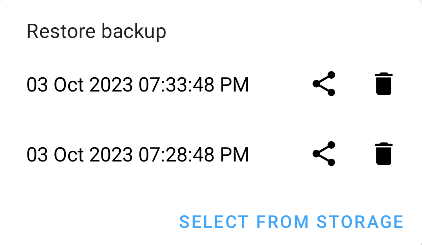
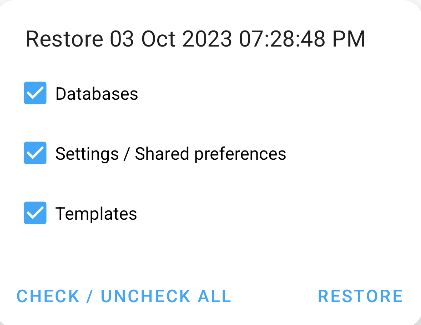
In the restore dialog, choose what to restore from the data contained in the backup, such as Databases, Settings and Templates. If the backup is password-protected, you are asked for the password.
Warning
Reset to default erases all app data. It cannot be undone.